Codex Can Now Capture Your Desktop Screenshots
Recently, OpenAI introduced a new feature for Codex called Chronicle. This feature captures your screen in the background, creating a memory that Codex can use the next time you open it.
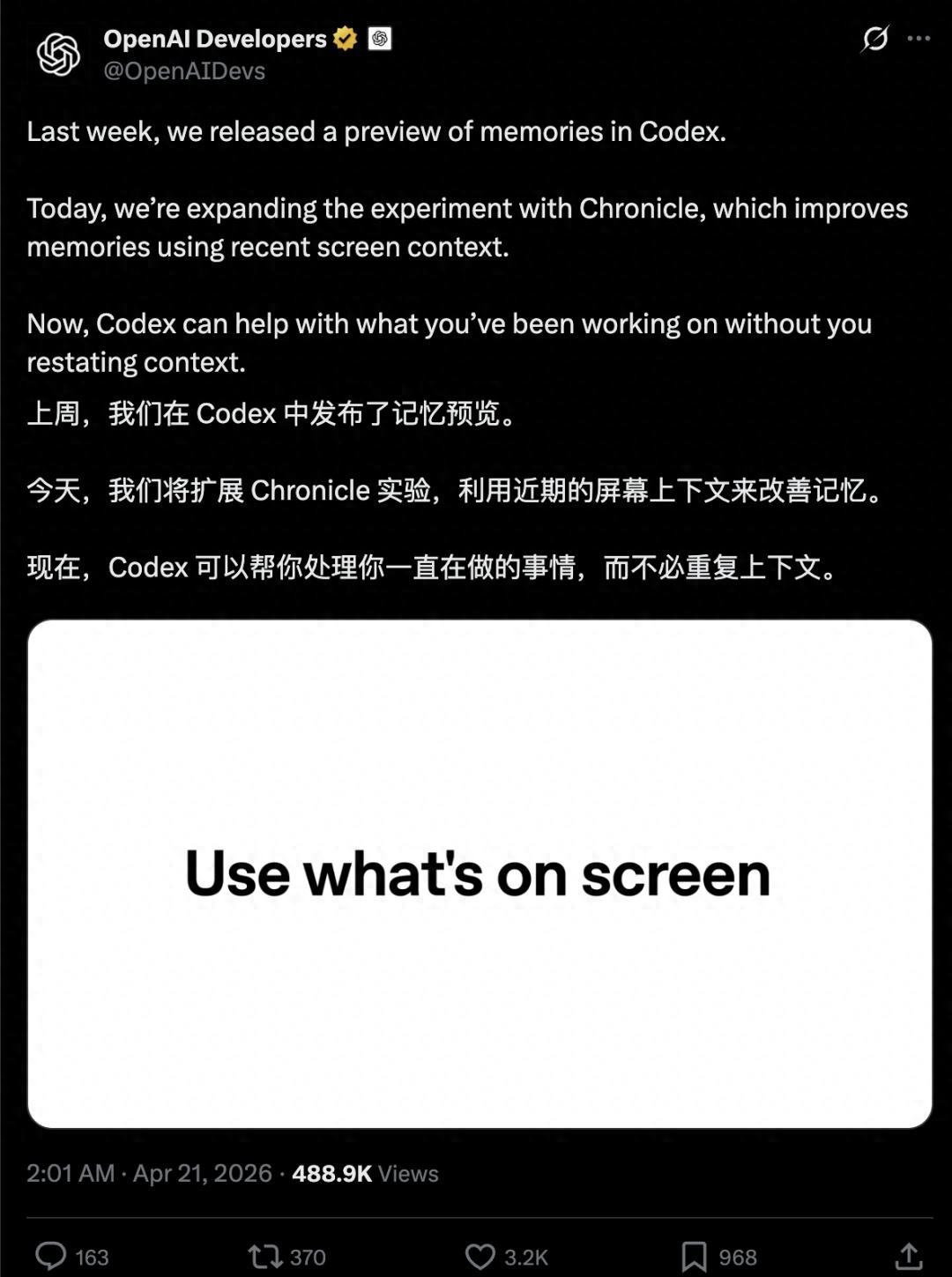
Just last week, Codex launched memories, allowing the agent to learn from conversation history. This week, Chronicle takes it a step further by learning from your screen.
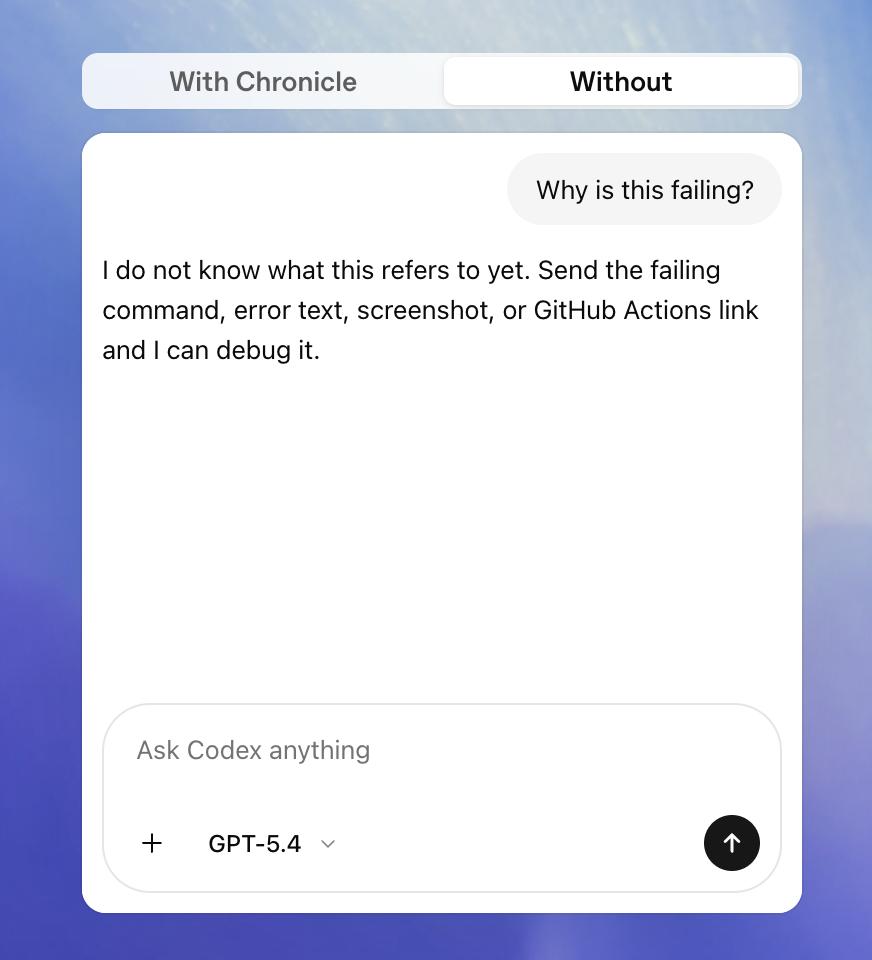
OpenAI describes Chronicle as enabling Codex to understand references like “this” and “that” on your screen. For example, it can recognize an error message or a document you have open, or even something you were working on two weeks ago. Previously, if you mentioned these things, Codex had no idea what you were referring to, requiring you to re-provide context or share screenshots.
Chronicle eliminates this friction. Over time, it can remember which tools you frequently use, which projects you revisit, and which workflows you rely on. For instance, if you ask GPT why something failed, it can now infer what you meant based on previous screenshots.
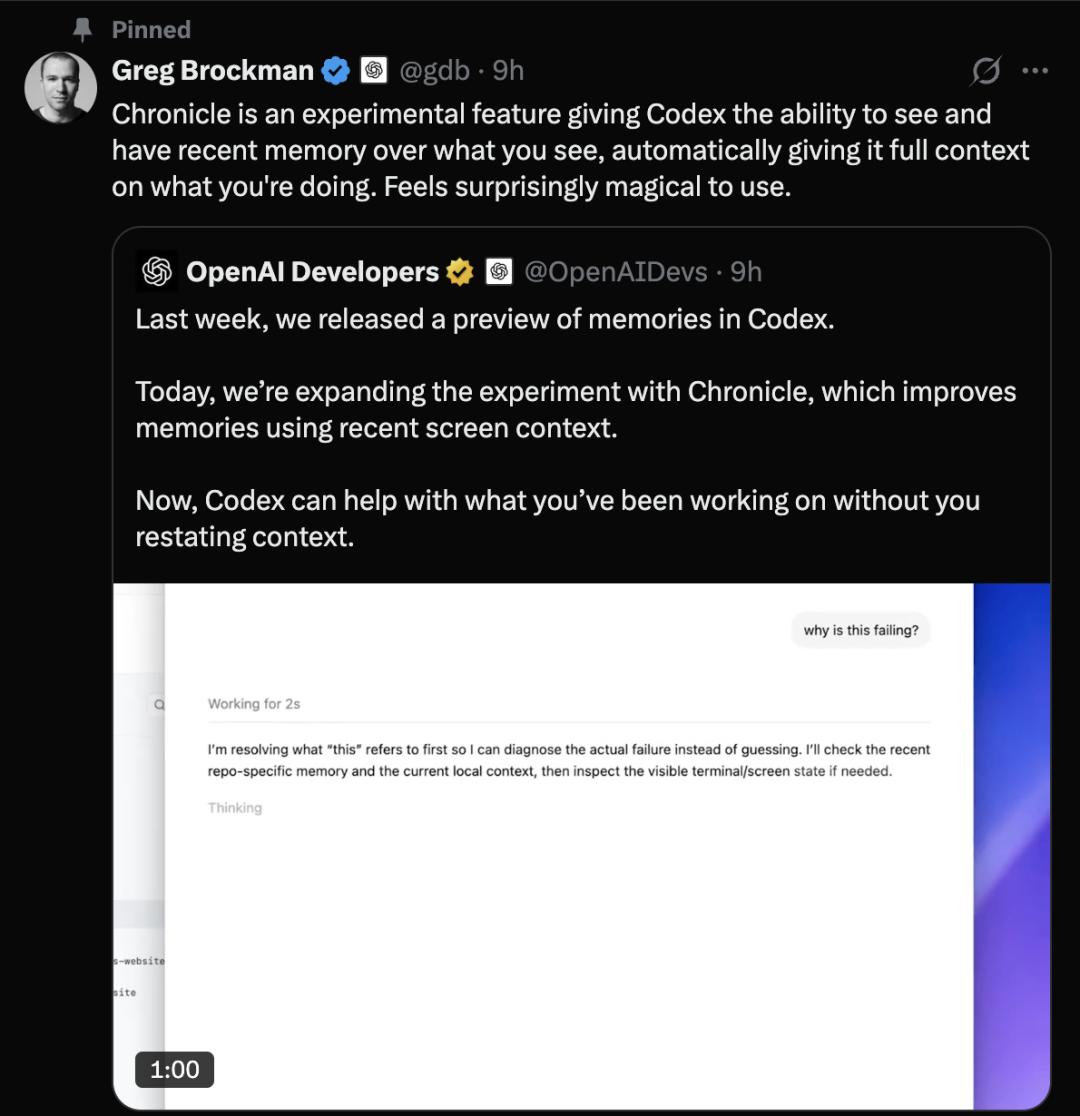
OpenAI’s president, Greg Brockman, describes it as an experimental feature that allows Codex to see and remember what you’ve recently viewed, automatically providing context for your activities. It feels remarkably magical to use.
The underlying principle is straightforward: a background agent periodically captures screenshots. These screenshots are not processed locally; instead, they are sent to OpenAI’s servers for OCR and visual analysis, generating Markdown text summaries that are sent back to your local device.
The original screenshots are retained locally for six hours before being deleted. However, the Markdown summaries are permanently stored in plain text, unencrypted. You can read, edit, or delete any summary you don’t want Codex to remember.
Chronicle does not always use the screenshot summaries as answers. OpenAI clarifies that if there are more suitable sources available, such as a specific file, a Slack message, a Google Doc, a dashboard, or a pull request, Codex will first identify that source using Chronicle and read from it directly. Chronicle serves as an index, not necessarily an answer.
Using Chronicle is simple. Open Codex settings, go to Personalization, enable Memories, then enable Chronicle, and grant macOS screen recording and accessibility permissions to start.
Currently, it is an opt-in research preview available only to ChatGPT Pro subscribers, costing $100 per month, and it only supports macOS.
Is AI Reliable with Screenshots?
While integrating screenshots into context can streamline workflows, there are a few things to consider before enabling Chronicle.
OpenAI candidly outlines three risks in its documentation. First, the rate limit can be consumed quickly because the background agent continuously processes screenshots into summaries, which uses up your quota.
Second, the risk of prompt injection increases. Malicious websites, emails, or documents displayed on your screen could potentially inject harmful commands into Codex’s context through screenshots without your knowledge.
Third, the memory is stored unencrypted on your device. The Markdown files are plainly visible locally, and other applications with access permissions could read them.
OpenAI advises pausing Chronicle before meetings or when viewing sensitive content. This suggestion is somewhat nuanced, as it acknowledges that Chronicle may capture inappropriate content, placing the responsibility of pausing on the user.
OpenAI is not the first to develop a desktop screen-aware agent. Microsoft attempted a similar feature with Recall in 2024, which led to significant backlash after security researchers demonstrated vulnerabilities in its encrypted database. This resulted in a 39% drop in Copilot subscription users, with Recall’s issues being a contributing factor.
Rewind AI was one of the earliest players in this space but later rebranded to Limitless and was acquired by Meta in December 2025, leading to the shutdown of its screen capture feature. Meta clearly did not intend to continue this functionality.
Open-source alternatives like Screenpipe still exist, focusing on local storage, but they are too technical for the average user.
Chronicle takes a relatively conservative approach: it does not upload screenshots to the cloud, stores them locally, deletes them after six hours, can be paused at any time, and allows for manual review and editing of summaries. This mechanism is much more transparent than Recall.
However, the demand for such features has not diminished, and concerns remain. Users express that this direction is beneficial, as it eliminates the need to repeatedly copy error messages or screenshots.
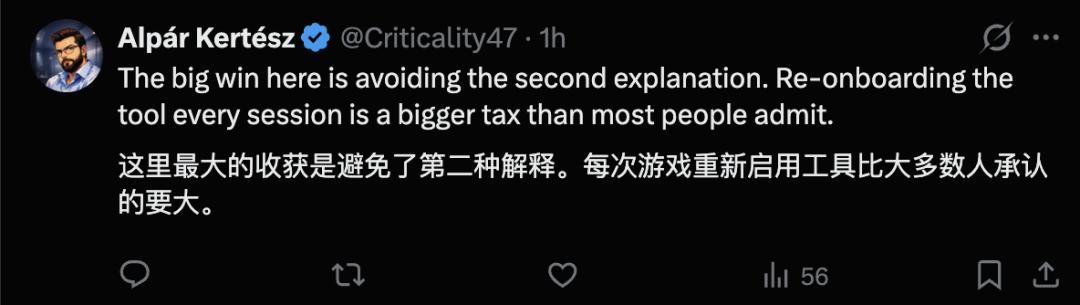
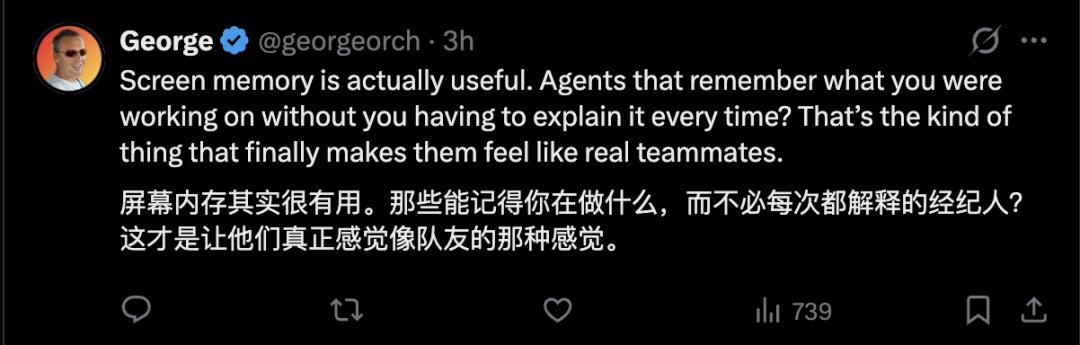
Conversely, some users focus on the phrase “unencrypted storage,” expressing concerns about having an agent that can capture screenshots freely.
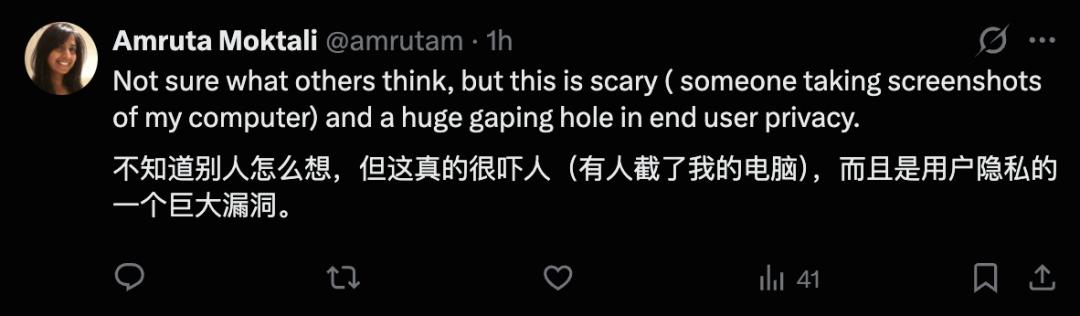

After all, no one wants to be caught by AI while slacking off!
Comments
Discussion is powered by Giscus (GitHub Discussions). Add
repo,repoID,category, andcategoryIDunder[params.comments.giscus]inhugo.tomlusing the values from the Giscus setup tool.